How containerization and Docker work, and why modern teams adopt them

    Containerization and Docker: A Complete Guide for Modern Software Teams

    How containerization and Docker work, and why modern teams adopt them

    A practical guide to containers, Docker images, and how they fit into production software delivery.

    Build software that runs the same everywhere it deploys

    Explore how Docker and container orchestration fit into your team's delivery pipeline.

    What containerization actually does to your application

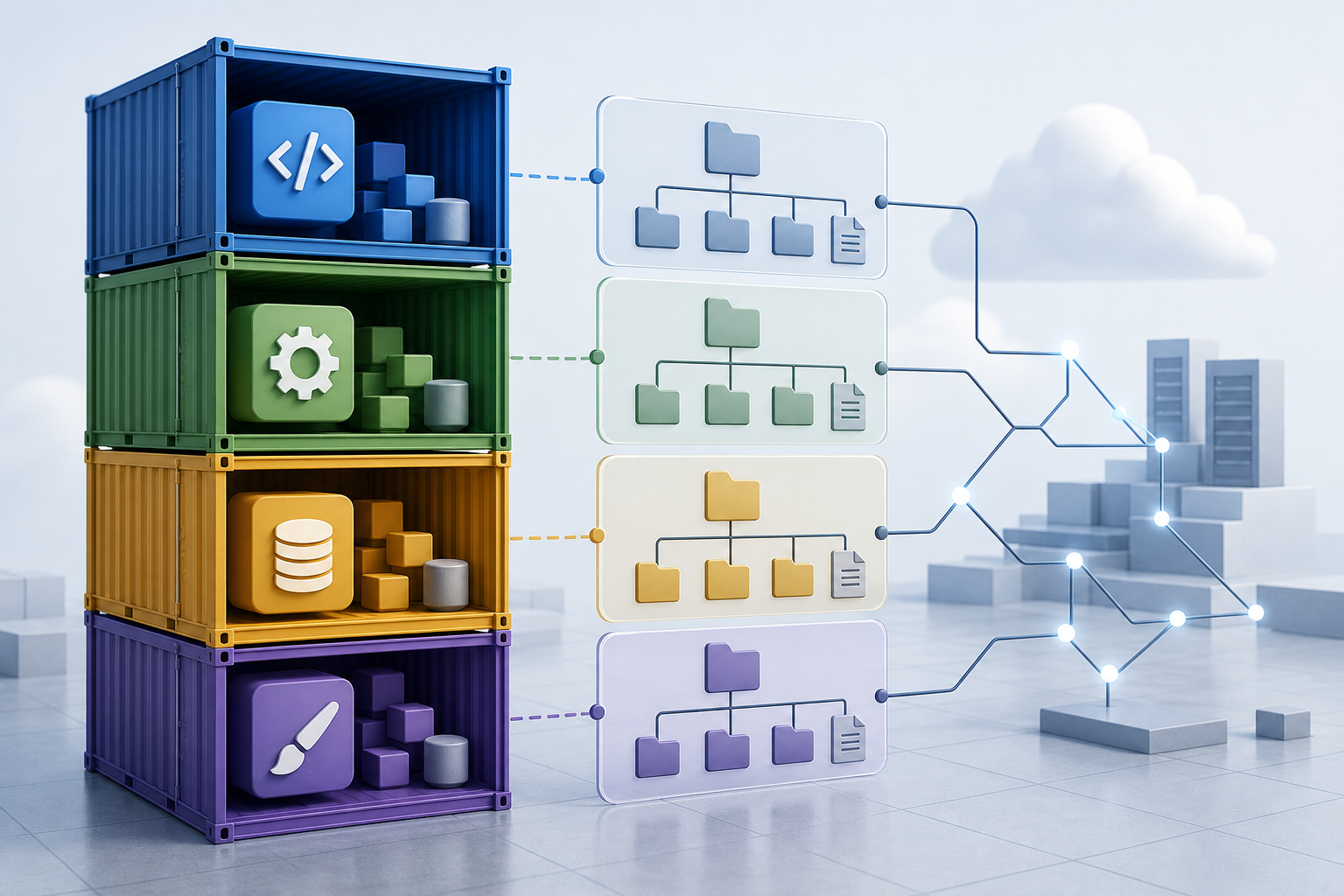
    Containerization packages an application together with its runtime, libraries, configuration files, and dependencies into a single self-contained unit called a container. That container carries everything the application needs, so it runs identically whether it is on a developer's laptop, a staging server, or a production cloud environment. The key mechanism is OS-level virtualization: rather than emulating separate hardware as a virtual machine does, containers share the host machine's OS kernel while each gets its own isolated file system, network interface, and process space. This makes containers far lighter than VMs and eliminates the classic "it works on my machine" problem that plagues software teams deploying across multiple environments.

    Docker's architecture: engine, daemon, and CLI

    Docker is the dominant platform for building, distributing, and running containers. At its core is the Docker Engine, an open-source component that manages the full container lifecycle. The Engine has two main parts: the Docker daemon, a background process that handles building images and running containers, and the Docker CLI, which lets developers issue commands from the terminal. On Linux, Docker relies on kernel features called namespaces and control groups to isolate containers from each other and from the host system. Namespaces give each container its own view of the process tree, network stack, and file system. Control groups limit how much CPU and memory each container can consume. Together, these primitives let multiple containers run securely on the same host without interfering with one another.

    Images versus containers: the blueprint and the instance

    The most important conceptual distinction in Docker is between an image and a container. A Docker image is a read-only package containing the base OS files, runtime, libraries, and your application code. It is built from a Dockerfile, where each instruction adds a new read-only layer to the image. When you run an image, Docker creates a container by adding a thin writable layer on top of the image's read-only layers through a copy-on-write mechanism. That writable layer is deleted when the container stops and is removed, so the underlying image stays untouched. If two images share the same base layers, those layers are stored only once on disk, which keeps storage overhead low. Think of the image as the blueprint and the container as the running building constructed from it.

    Containers versus virtual machines: a practical comparison

    Virtual machines virtualise the hardware itself. Each VM runs a complete guest operating system on top of a hypervisor, carrying its own kernel, system tools, and allocated memory. Containers, by contrast, are only megabytes in size and start in seconds, sometimes milliseconds, because they share the host kernel and skip the full OS boot sequence. VMs are typically dozens of gigabytes and can take minutes to start. The resource difference is significant in practice: you can run two to three times as many applications on a single server with containers than with VMs. The trade-off is isolation depth. Because containers share the kernel, a kernel-level vulnerability can potentially affect all containers on the host, which is why container security practices matter alongside the efficiency gains.

    From local orchestration to production scale with Kubernetes

    Docker Compose is the standard tool for orchestrating multi-container applications on a single machine. You define all services, networks, and volumes in a single YAML file, then bring the entire stack up with one command. This is ideal for local development and testing. For production, where applications must run across clusters of machines with automatic scaling, self-healing, and rolling deployments, teams move to Kubernetes orchestration. Kubernetes treats containers as its basic unit of deployment and adds the scheduling, load balancing, and resilience logic that Docker alone does not provide. Understanding Docker well is a prerequisite for working effectively with Kubernetes, since every workload Kubernetes manages is ultimately a container image built with the same principles covered here. This progression, from local containers to cluster orchestration, is a natural part of cloud computing services for growing teams.

    Containers share the host OS kernel rather than emulating separate hardware, which is why they start in seconds and consume a fraction of the resources a virtual machine requires.

    How to containerize an application with Docker

    1. 1

      Write a Dockerfile for your application

      A Dockerfile is a plain-text file that defines how your image is built. Each line is an instruction: choose a base image (for example, a minimal Linux distribution with your runtime already installed), copy your application code into the image, install dependencies, and specify the command that runs when a container starts. Each instruction adds a new read-only layer, so ordering matters: put infrequently changing steps like dependency installation before frequently changing steps like copying source code, so Docker can reuse cached layers and build faster.

    2. 2

      Build the image with Docker Engine

      Run `docker build` from the directory containing your Dockerfile. Docker Engine reads each instruction, executes it in a temporary container, and commits the result as a new layer. The final output is a tagged image stored locally on your machine. If any layer was built previously and its instruction has not changed, Docker reuses the cached layer rather than rebuilding it, which keeps build times short as your codebase grows.

    3. 3

      Run and verify the container locally

      Use `docker run` to create a container from your image. Docker adds the thin writable layer on top of the read-only image layers and starts your application process inside the isolated environment. You can map ports, mount volumes, and pass environment variables at runtime without modifying the image. Test the application here exactly as it will behave in production, since the container carries all its own dependencies.

    4. 4

      Orchestrate multi-container setups with Docker Compose

      Most real applications need more than one container: a web server, a database, a cache, a background worker. Docker Compose lets you define all of these as services in a single `docker-compose.yml` file, specifying which images to use, how containers connect to each other, and which ports to expose. Running `docker compose up` starts the entire stack in the correct order. This is the standard approach for local development environments and integration testing.

    5. 5

      Push the image to a container registry

      Once the image is verified, push it to a container registry such as Docker Hub, Azure Container Registry, or a private registry. A registry stores and versions your images so that any server or orchestration platform can pull and run them. Tagging images with version numbers or Git commit hashes makes it straightforward to roll back to a known-good state if a new deployment introduces a problem.

    6. 6

      Deploy to a production orchestration platform

      For production workloads, pull the image from the registry into a Kubernetes orchestration cluster or a managed container service. Kubernetes schedules containers across nodes, restarts failed containers automatically, and scales replicas up or down based on load. The image you tested locally is the exact same artifact running in production, which is the core promise of containerization. Teams working on cloud computing services infrastructure often treat this pipeline as a non-negotiable baseline for reliable software delivery.

    Benefits

    Consistent environments across stages

    A container carries its own dependencies, so the application behaves identically in development, testing, and production. Environment drift, the leading cause of deployment failures, is eliminated by design.

    Faster startup than virtual machines

    Because containers share the host OS kernel rather than booting a full guest OS, they start in seconds or milliseconds. VMs can take minutes to reach a ready state, which matters for scaling and recovery speed.

    Higher server density per host

    Containers are megabytes in size and memory footprint versus the gigabytes a VM requires. Teams can run two to three times as many applications on the same hardware compared to a VM-based deployment model.

    Efficient image layer sharing

    Docker images are built from shared read-only layers. If multiple images use the same base, those layers are stored only once on disk, reducing storage overhead and speeding up image pulls across a cluster.

    Natural path to Kubernetes orchestration

    Every Kubernetes workload is a container image. Teams that containerize early gain a direct on-ramp to production orchestration, including automatic scaling, self-healing, and rolling deployments, without rearchitecting.

    Containerization in practice: real scenarios

    Legacy application migration to the cloud

    A company running a monolithic application on on-premises servers wants to move to Azure without rewriting the entire codebase. By containerizing the existing application, the team packages the app and all its dependencies into a Docker image that runs identically on Azure Container Instances or Azure Kubernetes Service. No environment-specific configuration leaks through, because the container carries everything it needs. This approach reduces migration risk considerably: the application behaviour is validated locally in the container before a single line of infrastructure changes in production.

    Microservices development across distributed teams

    A software team splitting a large application into microservices needs each service to be independently deployable without affecting others. Each microservice gets its own Docker image with its own dependencies, so a Node.js service and a .NET service can coexist on the same host without version conflicts. Docker Compose lets the full team run the entire system locally with one command, regardless of which operating system each developer uses. When a service is ready, its image is pushed to the registry and deployed independently, which is the foundation of a healthy software architecture for distributed systems.

    Consistent CI/CD pipeline environments

    A development team finds that builds pass locally but fail in the CI pipeline because of dependency version mismatches between developer machines and the build server. Containerizing the build environment means the CI pipeline runs inside the same Docker image every developer uses. The build environment becomes code, versioned and reproducible. This eliminates an entire class of intermittent pipeline failures and makes onboarding new developers faster, since they pull the image rather than manually installing a matching toolchain.

    High-density server utilisation for a SaaS platform

    A SaaS provider running dozens of small tenant workloads on dedicated VMs finds infrastructure costs growing faster than revenue. Migrating each workload to a container and scheduling them on shared hosts with Kubernetes allows two to three times as many workloads per server compared to the VM-per-tenant model. Containers start in seconds, so new tenant environments can be provisioned almost instantly. Resource limits set via control groups ensure one tenant's traffic spike does not degrade another's performance.

    Common questions about containerization and Docker

    Ready to put containers to work in your delivery pipeline

    If your team is containerizing applications, migrating to Azure, or preparing workloads for Kubernetes, Techfirst's senior consultants can help you design and implement the right container strategy from the ground up. Reach out to discuss your current stack and where containers fit into your delivery pipeline.